Clean authorized marks from images you own
Remove internal draft labels, approved overlays, layout marks, or legacy watermarks only from assets you own or have permission to edit.
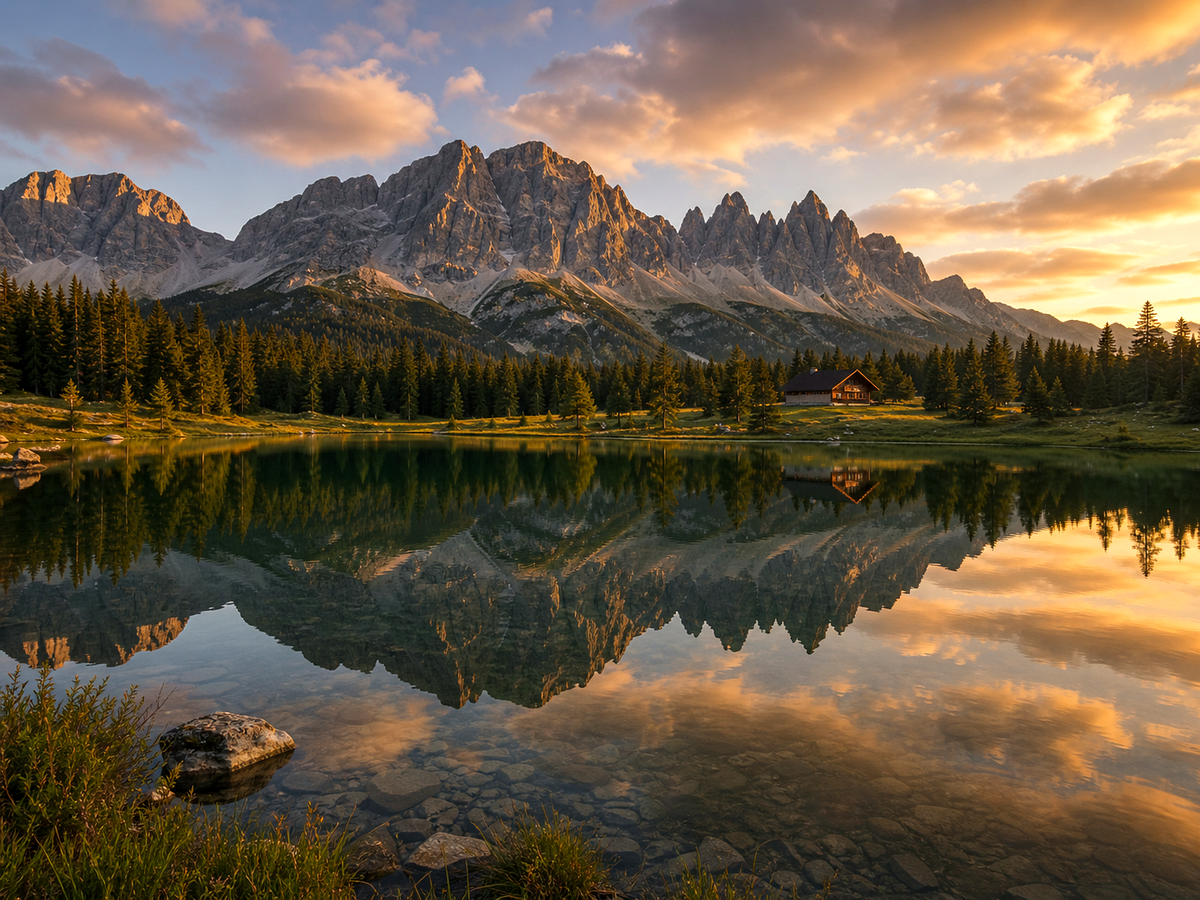
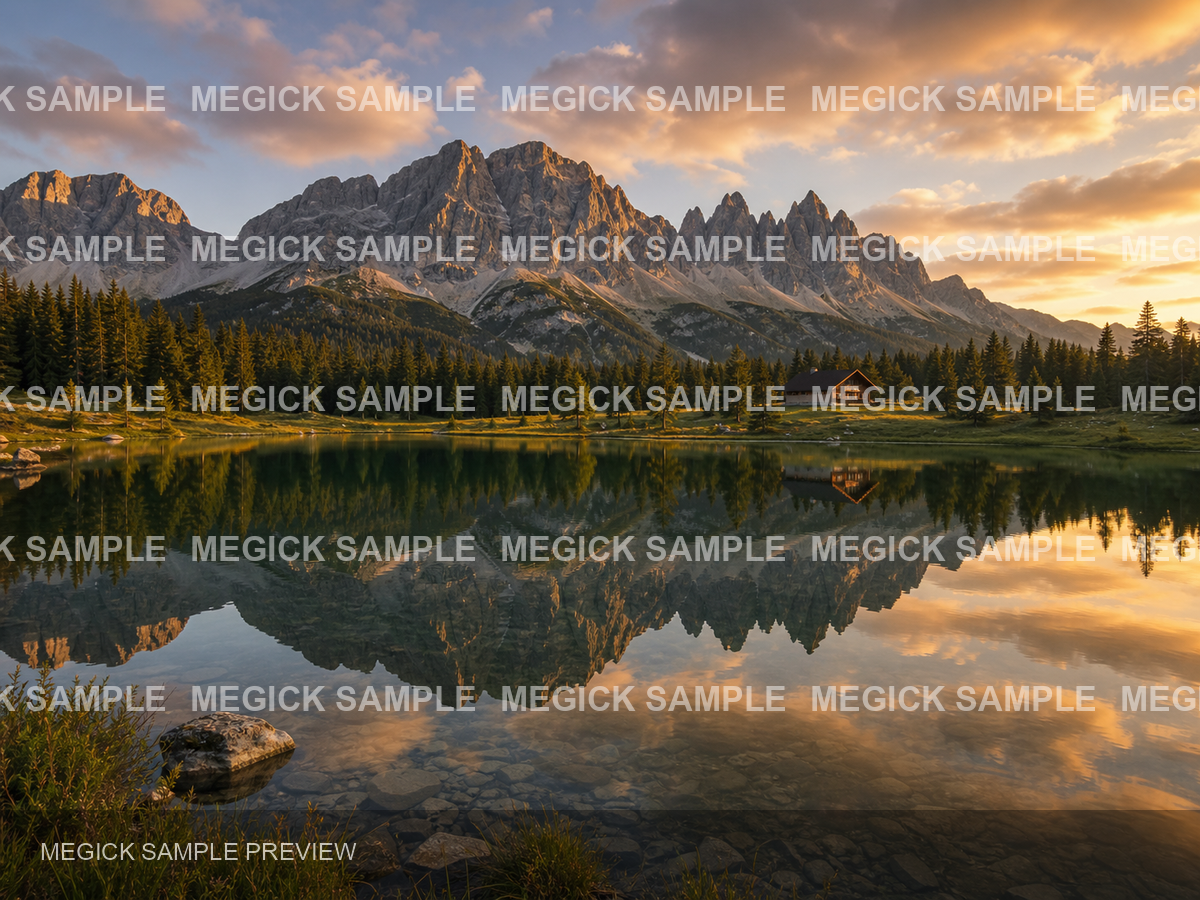
Create your own version
Open Megick to upload an image, write the edit direction, compare variants, and save the finished asset.
- Output options
- PNG · JPG · WebP
- Live comparison
- Before and after preview
- Studio workflow
- Prompt guided Before/after review
Overview
What image watermark cleanup helps you do
Start from a focused image goal, then continue in the studio when you are ready to create the finished result.
Use watermark cleanup only for assets you own, created, licensed, or have explicit permission to edit.
Megick frames this tool around legitimate cleanup: internal draft labels, layout notes, approved overlays, legacy campaign marks, and similar owned-asset repairs.
Why use it
Why use image watermark cleanup?
Practical ways to use this tool across product images, content, campaigns, and creative review.
Draft mark cleanup
Remove internal review labels or layout notes from approved creative assets.
Owned asset refresh
Clean old campaign marks from images your team owns and can legally edit.
Presentation polish
Remove accidental overlays before using owned imagery in a deck or product page.
Results
Image Watermark Cleanup before and after examples
Compare the original image with the edited result. Move the handle to inspect edges, texture, lighting, and subject detail.
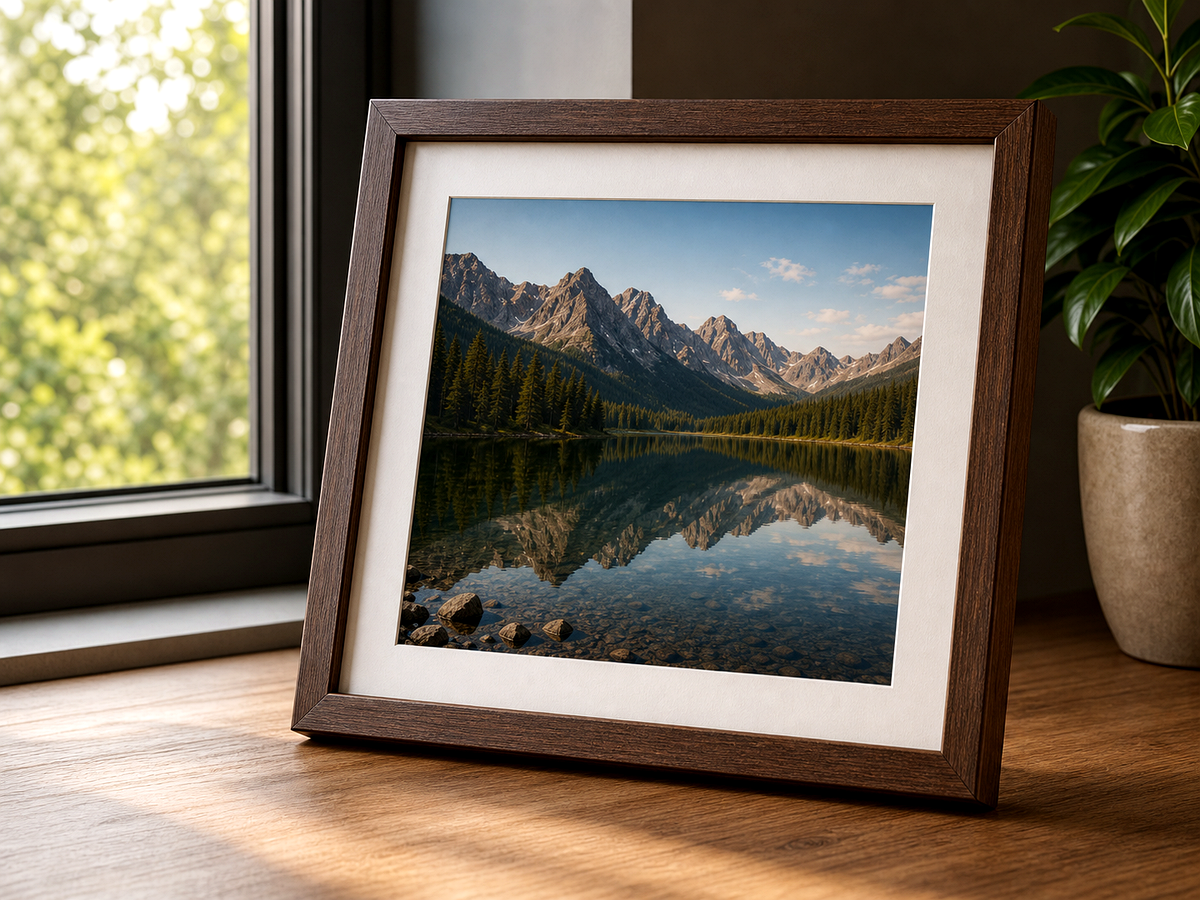
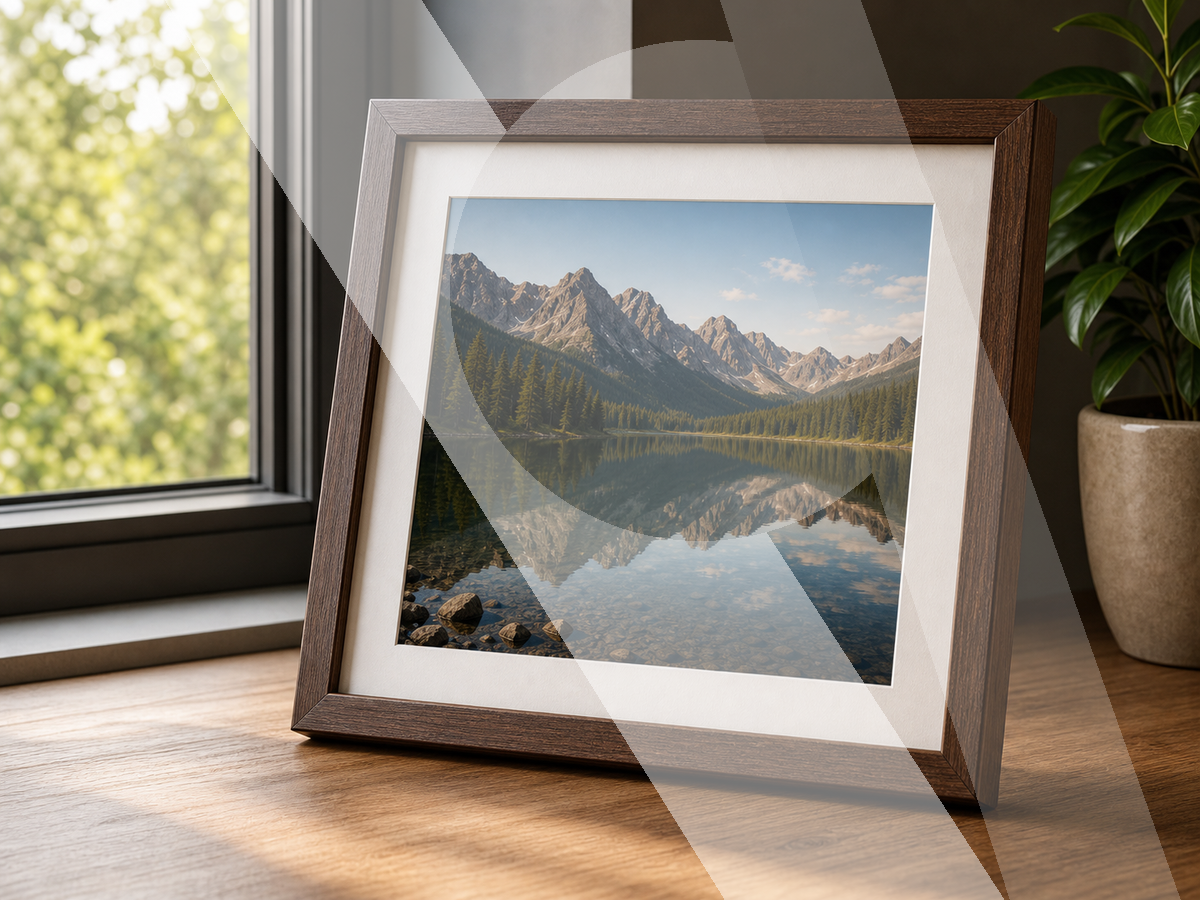

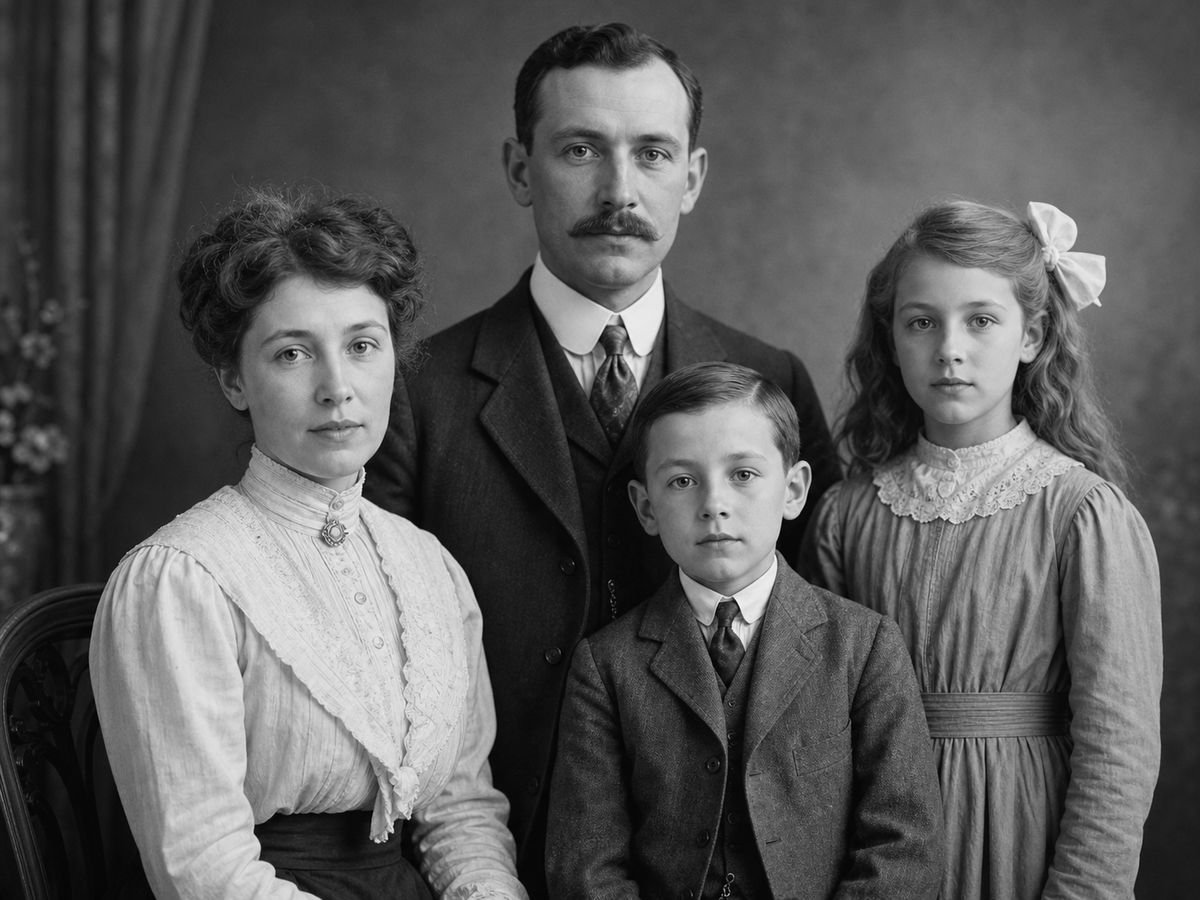
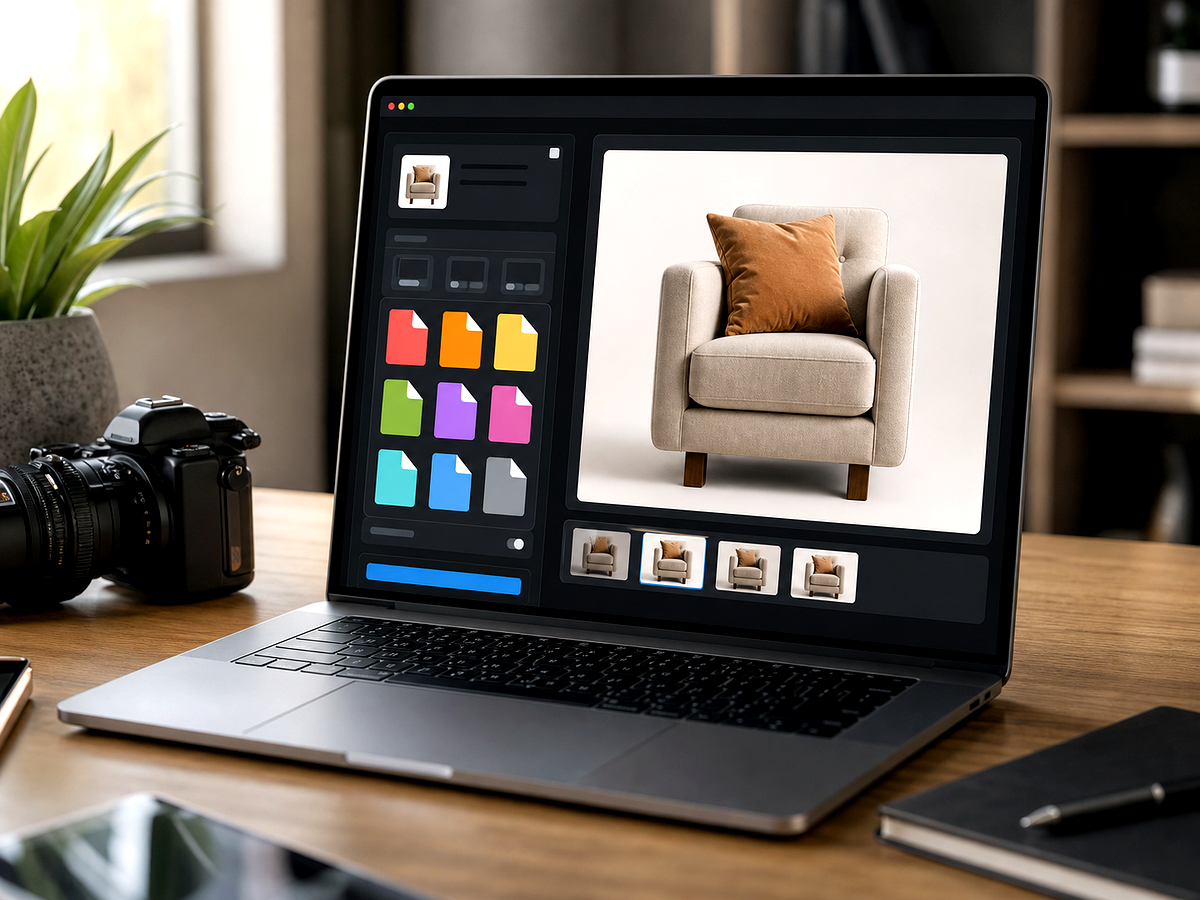
 Before / After
Create
Start in Megick
Use the button when you are ready to work with prompts, references, variants, and follow-up edits in one workspace.
Confirm usage rights
Only edit assets you own, created, licensed, or have explicit permission to modify.
Describe the overlay
Mention the specific mark, location, and background texture that should be repaired.
Review the repair
Check repeated patterns, edges, and fine texture before saving the final image.
Improvements
What this workflow improves
A quick view of the practical image improvements this tool is best suited to handle.
- Owned-asset cleanup
- Draft and overlay removal
- Responsible usage copy
- Texture-aware repair prompts
Feedback
What creators check before publishing
The comparison view makes it easier to spot whether details stayed natural.
Having related image tools close by keeps cleanup, enhancement, and export decisions in one workflow.
The studio path is direct: open the image, describe the edit, compare, then keep the best result.
Related tools
Keep working with related image tools
Move between connected image tasks without losing your place.
Remove Glare
Reduce shine, glass reflection, bright patches, and distracting glare so products, framed photos, and scenes look clearer.
Photo Colorizer
Add natural color to portraits, family photos, historical images, and vintage visuals while preserving the original mood.
Image Converter
Prepare images for publishing, ecommerce, social posts, decks, and creative handoff with format-aware editing in Megick.
E-commerce Suite
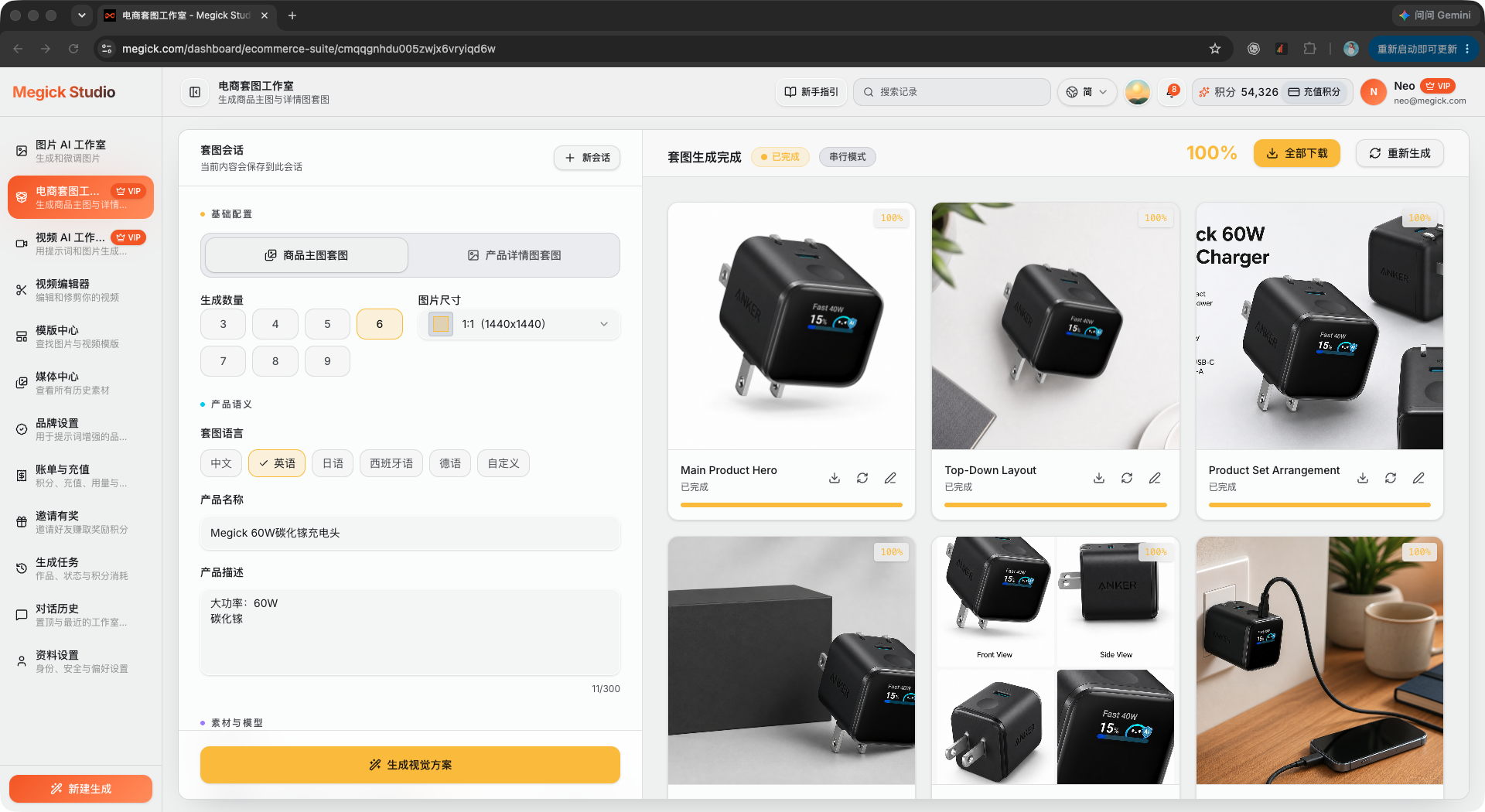
Create editable visual plans first, then generate main images, feature images, lifestyle scenes, and detail-page suites.
FAQ
Image Watermark Cleanup FAQ
Ready to use image watermark cleanup?
Continue to Megick to create, edit, compare, and save the finished image.