Image converter guidance for web-ready assets
Prepare images for publishing, ecommerce, social posts, decks, and creative handoff with format-aware editing in Megick.
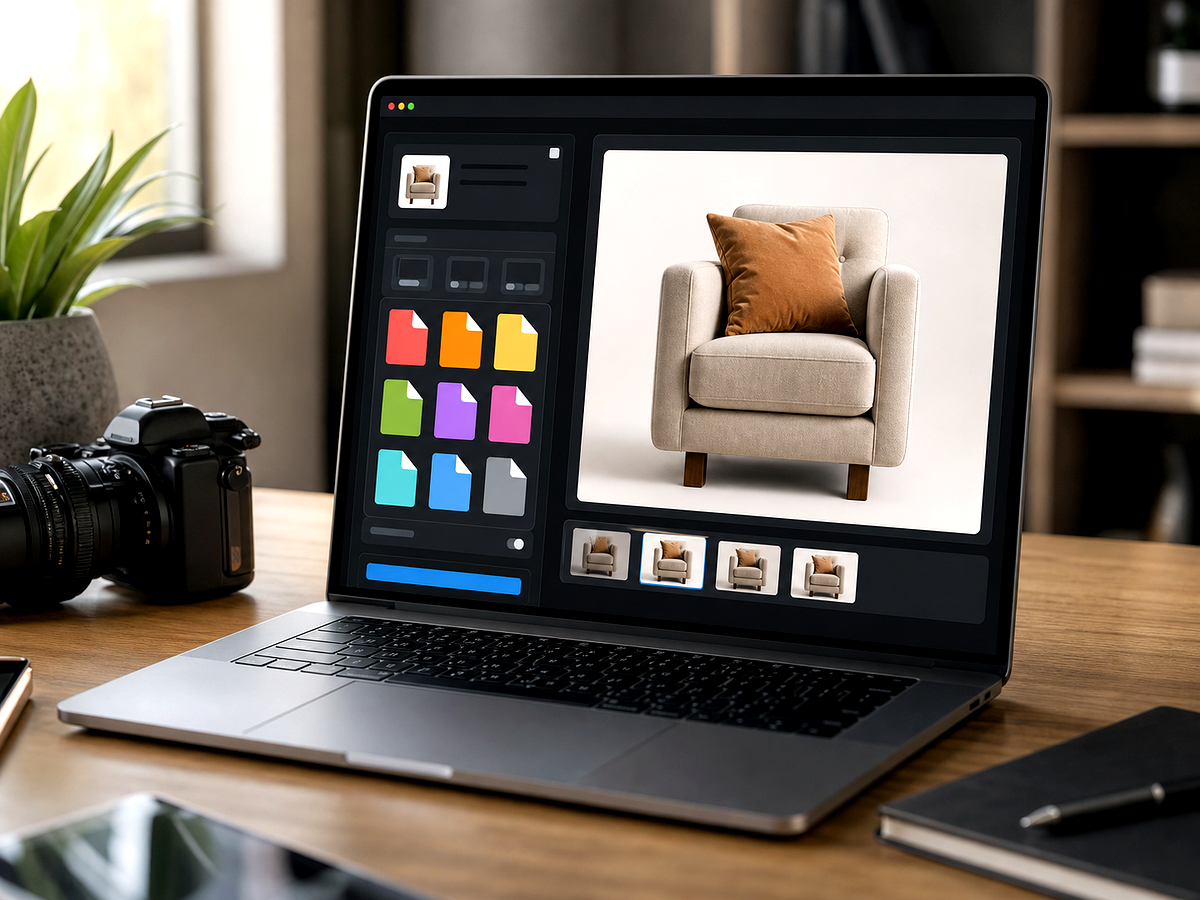
Create your own version
Open Megick to upload an image, write the edit direction, compare variants, and save the finished asset.
- Output options
- PNG · JPG · WebP
- Live comparison
- Before and after preview
- Studio workflow
- Prompt guided Before/after review
Overview
What image converter helps you do
Start from a focused image goal, then continue in the studio when you are ready to create the finished result.
Image conversion is often part of a larger production task: the asset may need the right format, but it may also need better quality, ratio, size, or visual polish.
Megick helps prepare images for publishing, ecommerce, social posts, presentations, and creative handoff before the final asset is saved.
Why use it
Why use image converter?
Practical ways to use this tool across product images, content, campaigns, and creative review.
Website publishing
Prepare images for web pages, blogs, feature sections, and gallery layouts.
Ecommerce assets
Standardize product visuals before uploading to store systems and marketplaces.
Creative handoff
Create variants and final files that fit campaign, design, and content channels.
Results
Image Converter before and after examples
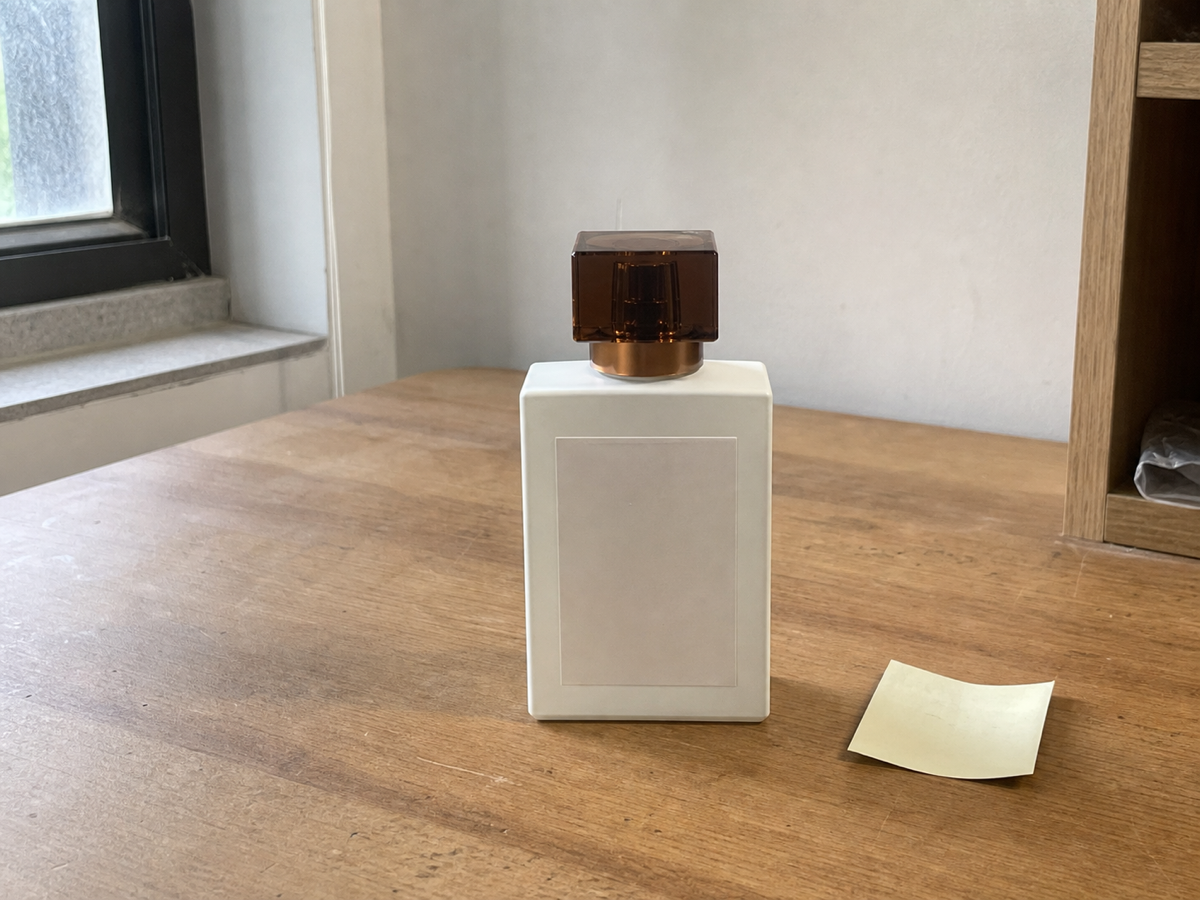
Compare the original image with the edited result. Move the handle to inspect edges, texture, lighting, and subject detail.
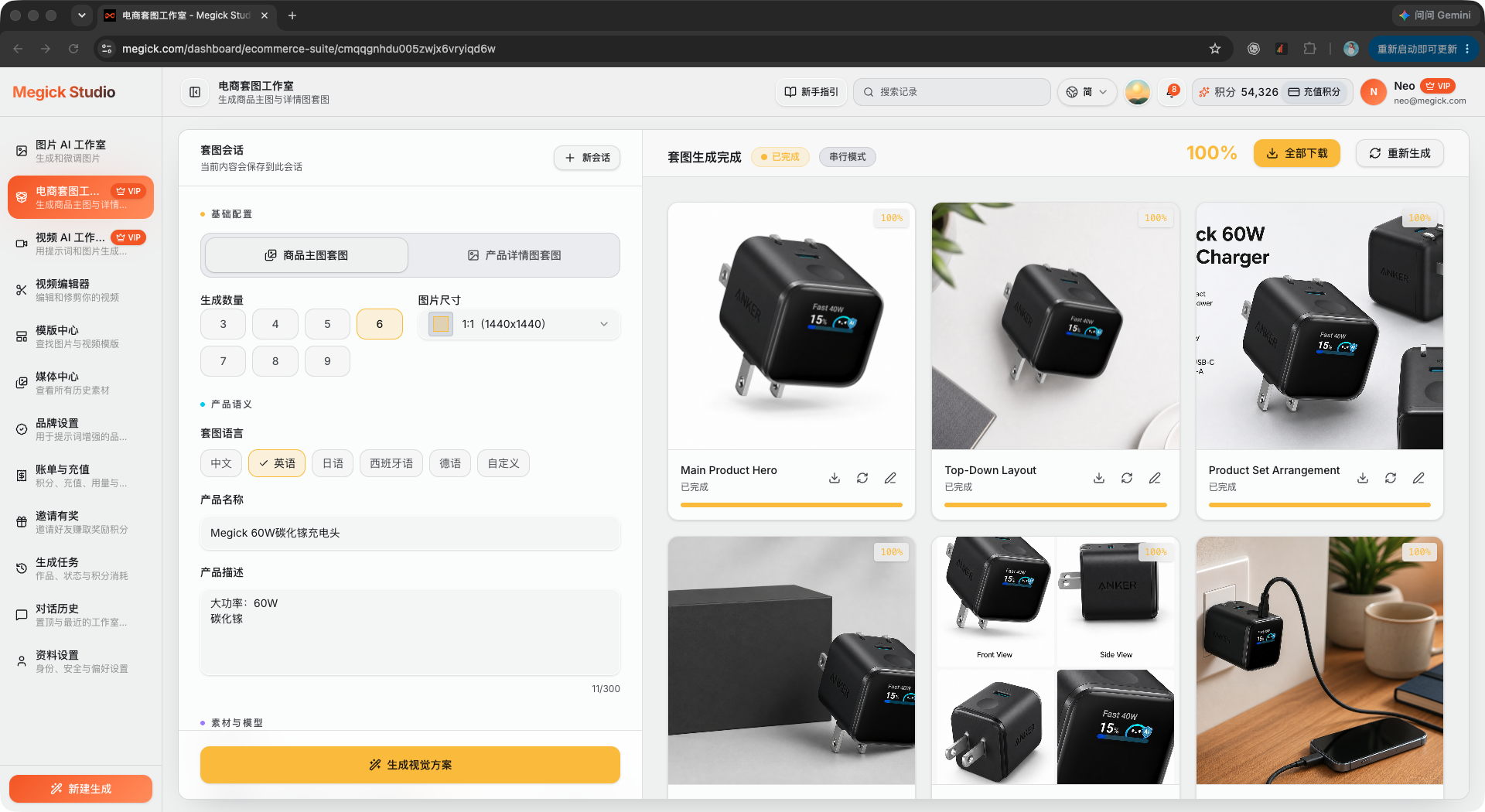 Before / After




Create
Start in Megick
Use the button when you are ready to work with prompts, references, variants, and follow-up edits in one workspace.
Choose destination first
Think website, marketplace, social, deck, print draft, or archive.
Prepare the image
Enhance, crop, upscale, or regenerate before finalizing the output format.
Save the final asset
Keep a version that matches the required size, ratio, and quality expectation.
Improvements
What this workflow improves
A quick view of the practical image improvements this tool is best suited to handle.
- Format-aware asset prep
- Web and ecommerce focus
- Pairs with enhancement
- Useful for handoff
Feedback
What creators check before publishing
The comparison view makes it easier to spot whether details stayed natural.
Having related image tools close by keeps cleanup, enhancement, and export decisions in one workflow.
The studio path is direct: open the image, describe the edit, compare, then keep the best result.
Related tools
Keep working with related image tools
Move between connected image tasks without losing your place.
E-commerce Suite
Create editable visual plans first, then generate main images, feature images, lifestyle scenes, and detail-page suites.
Photo Enhancer
Improve portraits, product photos, lifestyle shots, and social visuals with clearer detail, cleaner contrast, and a more polished finish.
AI Image Generator
Start with a prompt and turn it into polished product shots, ad concepts, feature images, thumbnails, and editorial visuals inside Megick.
Image Enhancer
Improve photo clarity, recover texture, balance contrast, and prepare images for commerce, social, and creative production.
FAQ
Image Converter FAQ
Ready to use image converter?
Continue to Megick to create, edit, compare, and save the finished image.